This post contains affiliate links. If you make a purchase through these links, I may earn a commission at no extra cost to you.
you’ve been working on your website, but you have to leave your desk before finishing. Later that day, while sitting in a park, commuting on a train, or simply waiting in line, inspiration strikes. Instead of waiting until you get back to your laptop, you can simply pull out your phone and continue working.
This is exactly where Jetpack comes in.
By now, you’ve probably heard of Jetpack — the all-in-one WordPress.com plugin developed by Automattic.
When most people think of Jetpack, they think about security, backups, and site performance. While those features are important, Jetpack can do much more. One feature I have come to appreciate is the ability to edit my WordPress.com site directly from my phone.
If you’re just getting started with WordPress.com or you’re still learning your way around the platform, Jetpack makes it surprisingly easy to manage your site while you’re away from your computer.
Getting Started with Jetpack
Unlike most WordPress plugins, Jetpack is also available as a mobile application. You can download it from either the Google Play Store or the Apple App Store.
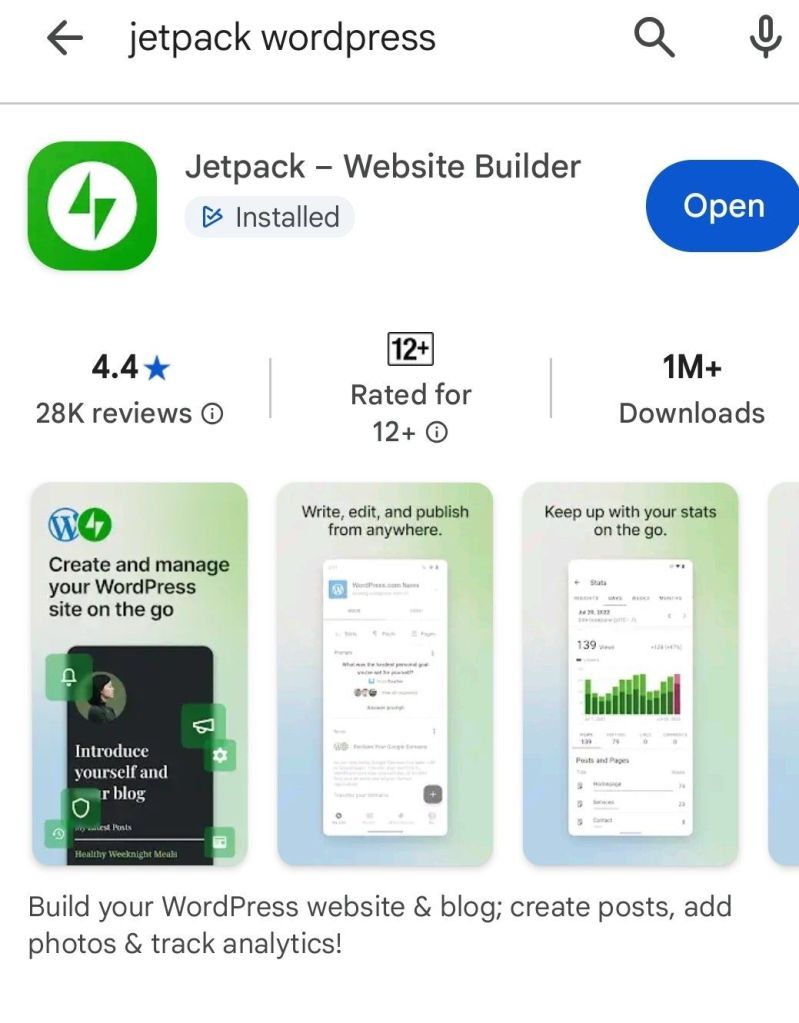
Once installed, the setup process is straightforward. Simply log in using your WordPress.com account credentials. After the initial login, the app remembers your account, so you won’t need to sign in every time you want to access your site.
I've been using Jetpack to edit my website and write blog posts, and it has become one of my favourite productivity tools. I often treat WordPress like a digital notebook where I can quickly save ideas, edit drafts, and publish content whenever inspiration strikes.
Editing Your Site
To begin editing your site’s appearance, tap Themes.
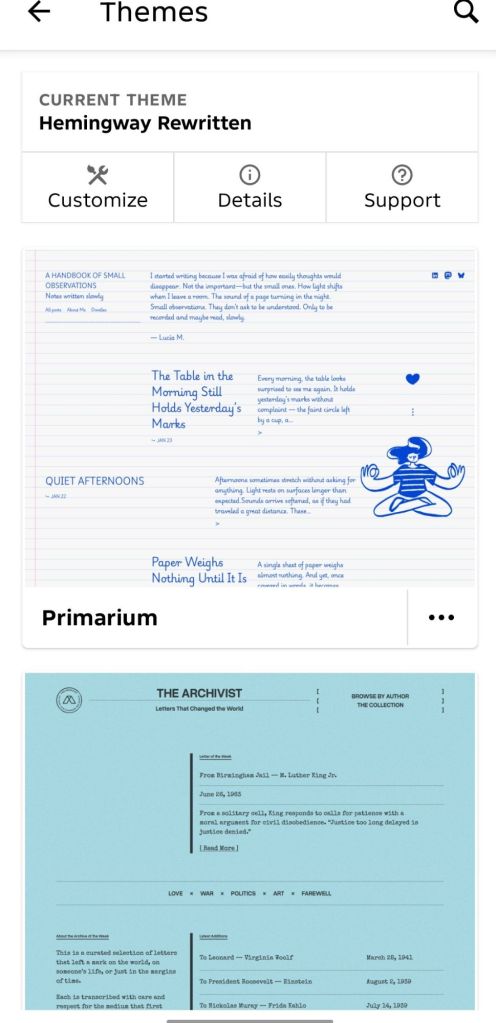
The interface is simple and easy to navigate. At the top, you’ll see the current theme your website is using, and you can choose a different one if you’d like.
However, I discovered one limitation.
When I attempted to customize my theme from within the Jetpack app, I was immediately redirected to the browser version of WordPress.com. I expected to be able to edit themes entirely inside the app, but I was surprised when it opened the browser instead.
While this technically allows theme editing on a phone, the experience isn’t particularly comfortable. Theme customization requires careful attention to spacing, layout, typography, and visual hierarchy — things that are difficult to judge on a small screen.
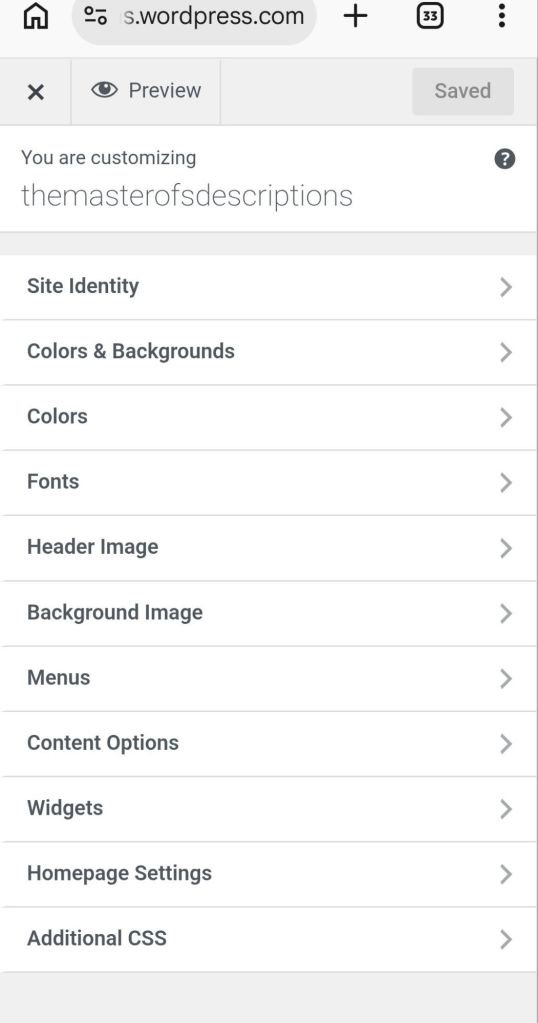
This explains why I often postponed major design work until I had access to my computer.
If you have a tablet, however, the experience is much better. The larger display provides enough space to comfortably customize your site’s appearance.
For more extensive design work, I still recommend using a laptop or desktop computer. The larger screen makes it much easier to evaluate your site’s visual appeal and overall navigation.
That said, Jetpack still allows you to preview your changes before publishing, which is incredibly useful when making quick updates on the go.
Connecting Your Social Media Accounts
One of my favourite Jetpack features has nothing to do with design.
It’s the ability to automatically share new WordPress.com posts across multiple social media platforms.
Whenever I publish a new article, Jetpack can automatically post an excerpt to my connected social media accounts, encouraging readers to visit my website to read the full article.
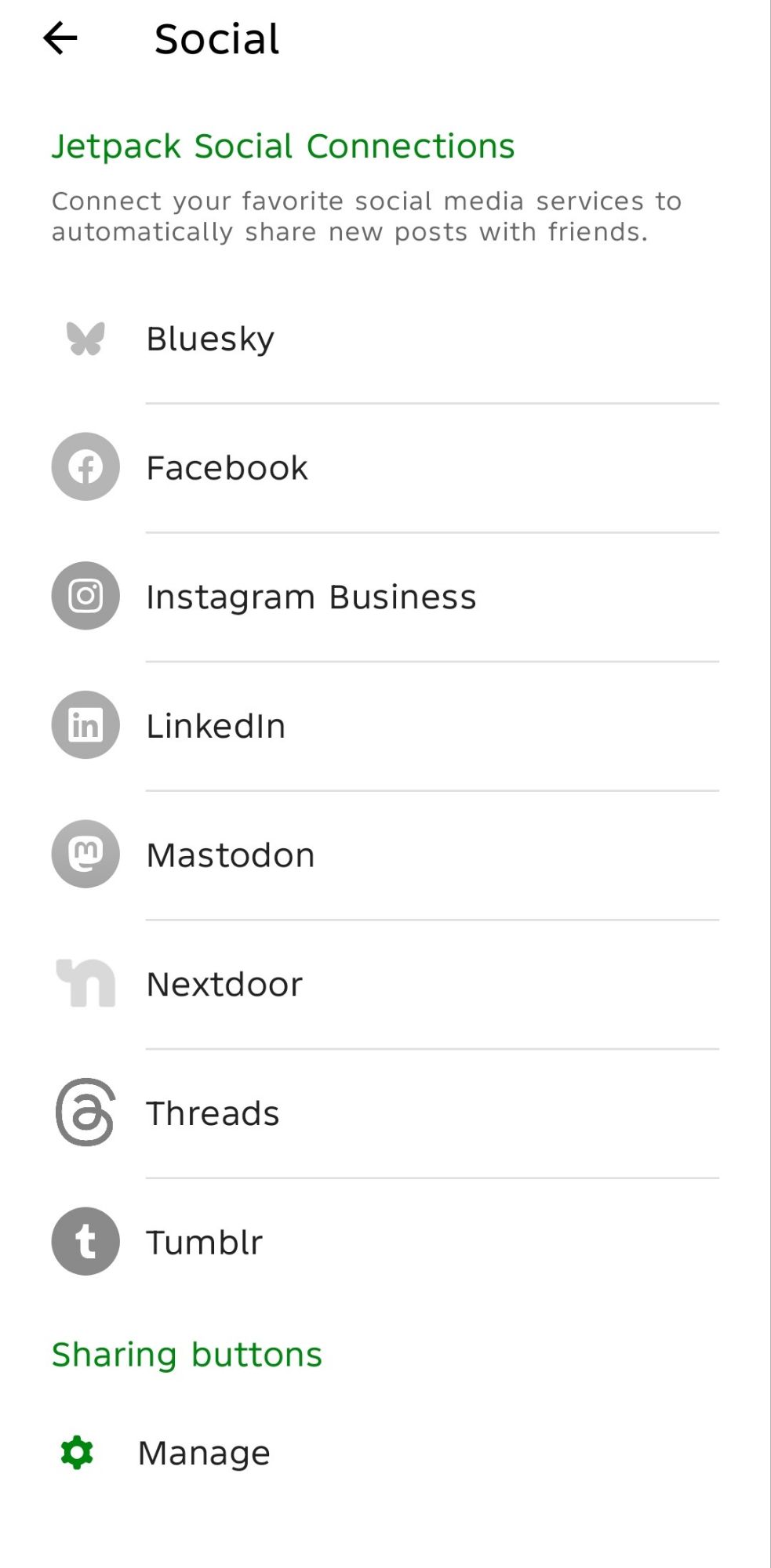
To set this up, tap Socials within the app.
You’ll find the available social connections, including:
- Bluesky
- Instagram Business
- Mastodon
- And several other supported platforms
Selecting a platform redirects you to the WordPress.com Marketing & Integrations page, where you can authorize your account.
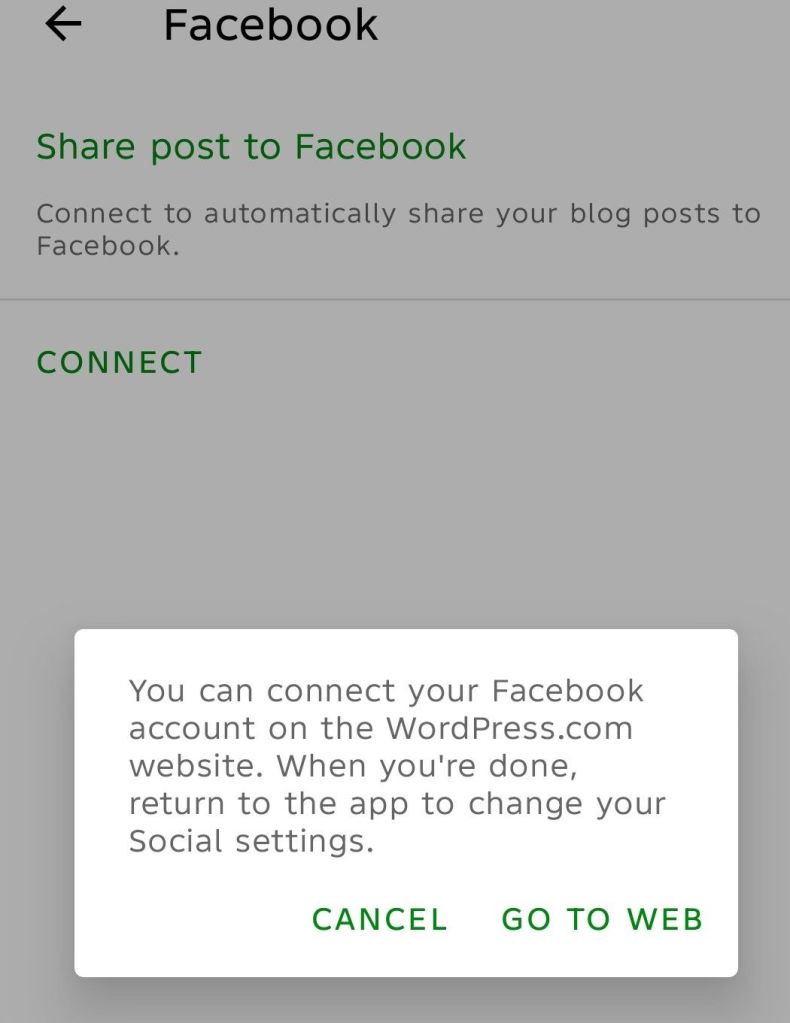
Once connected, Jetpack automatically shares future posts without requiring any additional work from you.
Customizing Sharing Buttons
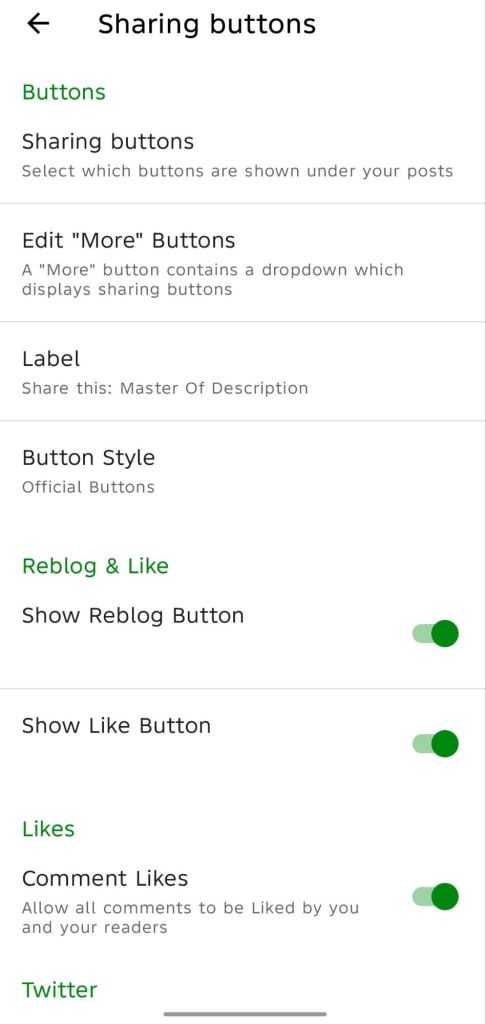
Jetpack also lets you customize the sharing buttons that appear beneath your blog posts.
You can choose:
- Which social platforms appear
- Official branded buttons
- Icon and text
- Icons only
- Text only
Since building a website is largely a visual process, I prefer using simple icons that readers immediately recognize. I don’t want visitors scrolling through my site trying to figure out how to share an article. The cleaner and more intuitive the interface, the better the user experience.
Final Thoughts
While I wouldn’t recommend designing an entire WordPress.com website from a smartphone, Jetpack is an excellent companion app for managing your site away from your desk.
Whether you’re editing drafts, publishing blog posts, previewing updates, or automatically sharing content across your social media platforms, Jetpack makes it possible to stay connected to your website wherever you are.
For me, that’s what makes it such an indispensable part of my WordPress workflow.


Leave a Reply